

Creating a website with Wix is simple, but ensuring that it works for all users requires more attention. Many site owners eventually realize that accessibility is an essential part of modern website design. If you want to improve usability and align your website with accessibility standards, following a Wix accessibility checklist is a practical place to start.
Accessibility helps people with visual, auditory, cognitive, or motor disabilities interact with your website. When a website lacks an accessible design, some users may struggle to read content, navigate menus, or complete important actions such as filling out forms. Accessibility guidelines, such as the Web Content Accessibility Guidelines (WCAG), provide a framework for building websites that are easier for everyone to use.
This guide provides a structured Wix accessibility checklist based on WCAG principles. It explains what accessibility means for Wix websites, the tools Wix offers to support accessibility, and the steps you can take to identify and resolve accessibility issues.
What Is a Wix Accessibility Checklist?
A Wix accessibility checklist is a structured list of tasks used to improve accessibility on a Wix website. It helps website owners review design, content, and functionality to ensure that people with different abilities can use the website.
Accessibility checklists usually cover areas such as:
- Website structure and navigation
- Colour contrast and readability
- Image descriptions and alt text
- Keyboard navigation
- Form usability
- Multimedia accessibility
Following a checklist helps ensure that accessibility improvements are applied consistently across the website. It also makes it easier to identify common issues that affect users with disabilities.
Many accessibility checklists are built around WCAG standards, which define how websites should support assistive technologies such as screen readers, magnifiers, and keyboard navigation tools.
Why Accessibility Matters for Wix Websites
Accessibility is not only about meeting standards or compliance goals. It also improves the overall user experience.
When websites are accessible:
- Content becomes easier to read and understand
- Navigation becomes more predictable
- Users can interact with the site using different devices or assistive technologies
For businesses and organizations, accessibility also helps reach a wider audience. Millions of internet users rely on accessibility features to browse the web. Designing with accessibility in mind ensures that your content can be accessed by more people.
Accessibility also supports better website usability in general. Clear navigation, readable text, and well-structured content benefit all users, not just those with disabilities.
If you want to understand the platform-level accessibility capabilities before implementing improvements, read our detailed guide on Is Wix ADA compliant. It explains how Wix supports accessibility, its built-in features, and the limitations website owners should consider when aiming to meet WCAG standards.
Understanding WCAG Standards for Wix Accessibility
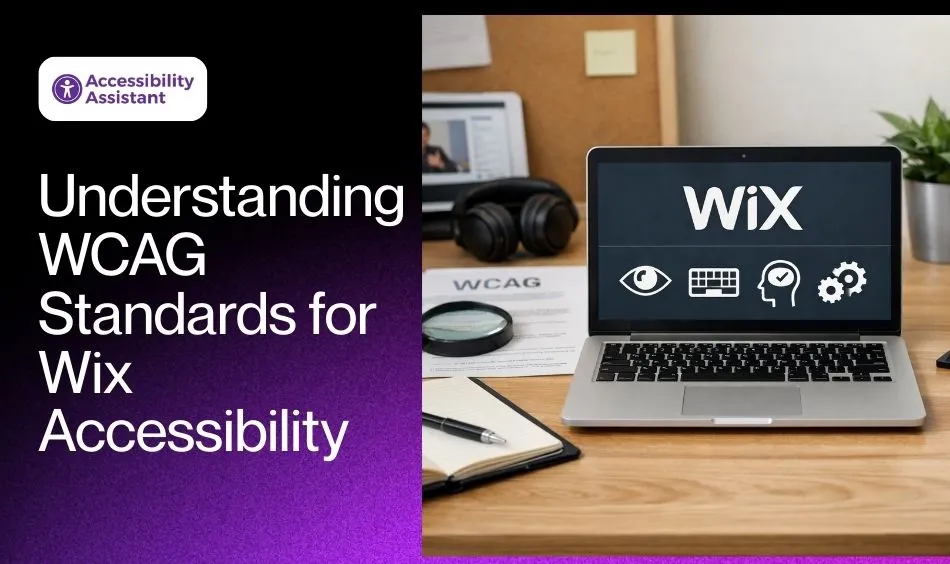
Most accessibility practices are based on WCAG guidelines, which provide technical recommendations for accessible web content.
WCAG is built on four core principles known as POUR:
Perceivable
Information and interface components must be presented in ways that users can perceive. Examples include providing alt text for images or captions for videos.
Operable
Users must be able to navigate and interact with the website. This includes keyboard accessibility and clear navigation structures.
Understandable
Content and interface behavior must be easy to understand. Instructions, labels, and error messages should be clear.
Robust
Content must work reliably with assistive technologies such as screen readers. When creating a Wix accessibility checklist, these principles guide the design and testing process.
Wix Accessibility Features That Support WCAG
Wix includes several built-in tools that help website owners improve accessibility.
Wix Accessibility Wizard
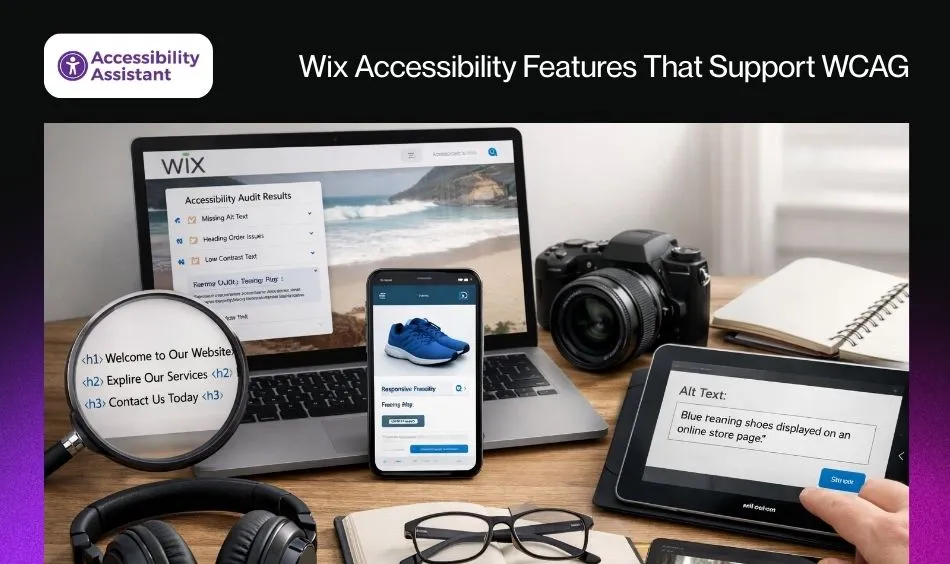
The Wix Accessibility Wizard scans your website and identifies potential accessibility issues. It provides recommendations for fixing common problems, such as missing alt text or incorrect heading structure. Although it cannot detect every issue, it offers a useful starting point for improving accessibility.
Heading Structure Controls
Wix allows users to assign heading tags such as H1, H2, and H3 to text elements. This helps create a logical page structure that screen readers can interpret more easily. Proper heading structure also improves navigation for users who rely on assistive technologies.
Image Alt Text Fields
Wix allows users to add alternative text descriptions to images. Alt text helps screen readers describe images to users who cannot see them.
For example, an image of a product could include alt text such as:
“Blue running shoes displayed on an online store page.”
Keyboard Navigation Support
Many users rely on keyboard navigation instead of a mouse. Wix websites support keyboard interaction so users can move between elements using the Tab key. Ensuring that all interactive components are accessible through keyboard navigation is an important part of accessibility.
Responsive Design Features
Wix automatically adjusts layouts for different screen sizes. Responsive design helps users access content on mobile devices and tablets without layout issues.
Complete Wix Accessibility Checklist (WCAG-Based)
The following table summarizes key items that should be included in a Wix accessibility checklist.
| Accessibility Area | What to Check | Why It Matters |
| Page structure | Use proper H1–H6 headings | Helps screen readers navigate |
| Images | Add descriptive alt text | Improves image accessibility |
| Color contrast | Ensure readable text | Supports users with low vision |
| Keyboard navigation | Test tab navigation | Helps users without a mouse |
| Forms | Add labels and error messages | Improves usability |
| Multimedia | Provide captions or transcripts | Supports hearing-impaired users |
| Links | Use descriptive link text | Improves navigation clarity |
| Responsive layout | Test mobile and Zoom | Ensures accessibility on different devices |
This checklist provides a basic framework for improving accessibility on Wix websites.
Step-by-Step Guide to Implement the Wix Accessibility Checklist
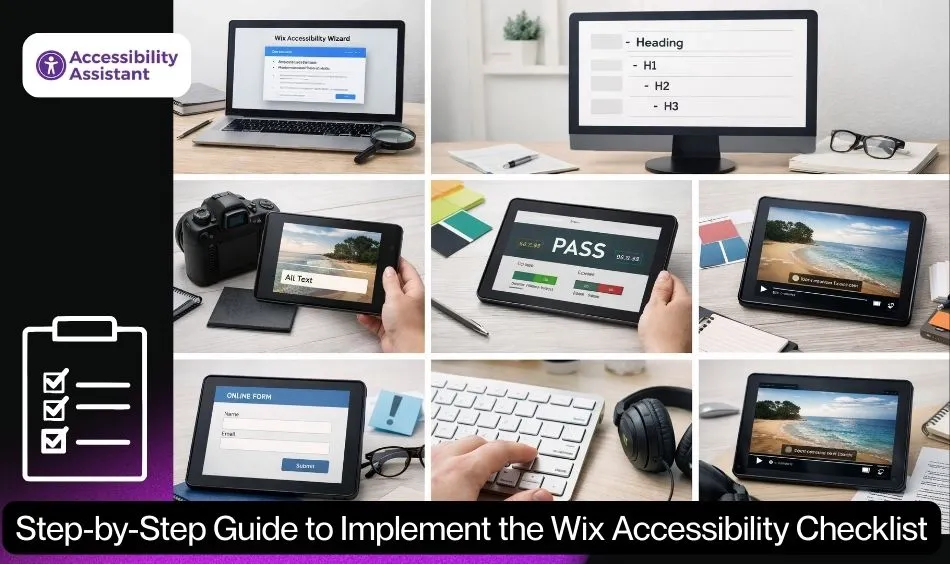
Improving accessibility on a Wix website involves reviewing several elements of the site and making adjustments where necessary.
Step 1: Use the Wix Accessibility Wizard
Start by running the Wix Accessibility Wizard. This tool scans your website and highlights areas that may need improvement.
It may identify issues such as:
- Missing alt text
- Incorrect heading levels
- Missing page language settings
Addressing these issues helps improve accessibility quickly.
Step 2: Review Heading Structure
Each page should include a clear heading hierarchy.
Best practices include:
- Use only one H1 per page
- Use H2 and H3 headings for sections and subsections
- Avoid skipping heading levels
Proper structure helps screen readers interpret content correctly.
Step 3: Add Alt Text to Images
Every meaningful image should include descriptive alt text.
Good alt text:
- Explains the purpose of the image
- Is concise and descriptive
- Avoids unnecessary words such as “image of.”
Decorative images that do not convey information can have empty alt text.
Step 4: Improve Color Contrast
Low contrast between text and background colors can make content difficult to read. WCAG guidelines recommend sufficient contrast between text and background to support users with visual impairments. Testing color combinations ensures that text remains readable.
Step 5: Make Forms Accessible
Forms should be easy to complete for all users.
Accessible forms include:
- Clear labels for each field
- Instructions for required inputs
- Error messages that explain what needs correction
These elements help users complete forms without confusion.
Step 6: Test Keyboard Navigation
Navigate your website using only the keyboard.
Ensure that users can:
- Move between links and buttons
- Access menus and forms
- Activate interactive elements
Keyboard testing helps identify barriers for users who cannot use a mouse.
Step 7: Provide Captions and Transcripts for Media
Videos should include captions, and audio content should provide transcripts. Captions help users who are deaf or hard of hearing understand video content. Transcripts provide a text alternative for audio materials.
If you want a complete walkthrough beyond this Wix accessibility checklist, you can also read our detailed guide on how to make a Wix website ADA compliant, which explains accessibility setup, WCAG best practices, and the steps required to improve accessibility across your Wix website.
Common Accessibility Issues Found in Wix Websites
Even when accessibility tools are available, websites can still contain accessibility barriers.
Common issues include:
Missing Alt Text
Images uploaded without alt text prevent screen readers from describing visual content.
Low Color Contrast
Text that blends with the background can be difficult to read.
Incorrect Heading Structure
Improper heading usage can disrupt screen reader navigation.
Inaccessible Forms
Forms without labels or instructions can be difficult to complete.
Third-Party Apps
Some plugins or widgets may not fully support accessibility. Regular testing helps identify these problems before they affect users.
How to Test Your Wix Website for Accessibility
Testing helps verify that accessibility improvements are working correctly. Several tools can assist with accessibility testing.
Commonly used tools include:
- Accessibility Assistant
- WAVE Web Accessibility Tool
- Axe DevTools
- Google Lighthouse
- Accessibility Insights
Automated tools can detect many accessibility issues, but manual testing remains important. Checking navigation, readability, and interaction ensures that the website works well for different users.
Maintaining Accessibility After Launch
Accessibility should be treated as an ongoing process rather than a one-time task.
To maintain accessibility:
- Run accessibility checks regularly
- Review accessibility when updating design or content
- Train content teams on accessibility practices
- Test new apps or plugins before adding them to the site
Regular monitoring helps prevent accessibility problems from returning.
Frequently Asked Questions About Wix Accessibility
- Is Wix WCAG compliant?
Wix provides accessibility tools and features that help website owners follow WCAG (Web Content Accessibility Guidelines). However, Wix itself is not automatically WCAG compliant. Compliance depends on how the website is designed, structured, and maintained. When website owners apply accessibility best practices, such as proper heading structure, alt text for images, keyboard navigation, and sufficient color contrast, a Wix website can align with WCAG standards.
- What are the 4 pillars of accessibility?
The four pillars of web accessibility are based on the WCAG POUR principles:
- Perceivable – Users must be able to see or hear the content.
- Operable – Users must be able to navigate and interact with the interface.
- Understandable – Content and navigation should be clear and predictable.
- Robust – The website must work with assistive technologies like screen readers.
These principles guide how accessible websites are designed and evaluated.
- Can a website be 100% ADA compliant?
No website can be guaranteed to remain 100% ADA compliant at all times. Accessibility standards evolve, websites change frequently, and user needs vary. However, websites can achieve strong accessibility alignment by following WCAG guidelines, performing regular accessibility audits, and continuously improving design and content.
- Is WCAG a legal requirement in the US?
WCAG itself is not a law in the United States, but it is widely used as the technical standard for evaluating website accessibility under the Americans with Disabilities Act (ADA). Courts, regulators, and accessibility professionals often refer to WCAG guidelines when determining whether a website meets accessibility expectations.
- Do professional web developers use Wix?
Yes, many professional web developers use Wix for projects that require fast development and easy content management. Wix offers templates, design tools, and built-in features that help businesses launch websites quickly. However, developers working on complex applications or highly customized systems may choose other platforms that provide greater flexibility for advanced development.
Conclusion
Following a Wix accessibility checklist is an effective way to improve website usability and align with WCAG guidelines. By reviewing page structure, images, navigation, and multimedia elements, website owners can identify accessibility barriers and resolve them step by step.
Wix provides useful accessibility tools, but accessibility ultimately depends on how the website is designed and maintained. Implementing accessibility best practices, testing regularly, and monitoring updates helps ensure that the website remains usable for a wide range of users.
Accessible websites support inclusive digital experiences, improve usability, and help ensure that content can be accessed by everyone.