

How to make your website accessible is one of the most important questions modern businesses face today. Accessibility is no longer just a technical or legal consideration—it directly affects usability, reach, trust, and long-term digital performance.
An accessible website allows people with disabilities to read content, navigate pages, fill out forms, and complete actions without barriers. It also improves the experience for mobile users, older audiences, and anyone interacting with your site in less-than-ideal conditions.
This step-by-step guide explains how to make your website accessible using current WCAG 2.2 standards and practical accessibility implementation techniques. Whether you manage an e-commerce store, SaaS product, marketing site, or content platform, this guide will help you move from awareness to action.
What Makes a Website Accessible?
A website is accessible when all users, regardless of ability, can perceive, operate, understand, and interact with its content.
Accessibility applies to:
- Website layout and navigation
- Text, images, and media
- Forms and interactive elements
- Mobile and responsive behavior
- Documents and downloads
Accessibility is not about adding special features for a small group. It is about removing barriers so the website works for everyone.
If you are new to accessibility or want to understand the fundamentals before implementing changes, it helps to start with the basics. Our guide on what web accessibility is explains the core concepts, who accessibility supports, and why it matters for every website. Reviewing these principles alongside implementation steps ensures your accessibility efforts are grounded in the right foundation.
Accessibility vs Usability
Accessibility focuses on removing barriers for users with disabilities.
Usability focuses on ease of use for all users.
The two overlap heavily. Many accessibility improvements, clear structure, readable text, and predictable behavior also improve usability and conversion rates.
Who Web Accessibility Supports
Accessible websites support:
- Screen reader users
- Keyboard-only users
- Users with low vision or color blindness
- Users with hearing impairments
- Users with cognitive or learning challenges
- Aging users with reduced vision or mobility
- Mobile users in bright light or noisy environments
Accessibility improves outcomes for far more people than most teams expect.
Standards You Must Know Before You Start
Before fixing issues, it’s important to understand the standards that guide accessibility work.
What WCAG Means in Practice
WCAG (Web Content Accessibility Guidelines) is the global technical standard for web accessibility. Most organizations aim for WCAG Level AA, which balances strong accessibility coverage with realistic implementation.
WCAG is built on four principles known as POUR:
- Perceivable – Content must be visible or audible
- Operable – Users must be able to navigate and interact
- Understandable – Content and behavior must be clear
- Robust – Content must work with assistive technologies
WCAG 2.2 strengthens guidance around focus visibility, keyboard interaction, and mobile usability, areas that frequently cause audit failures.
How ADA Guidance Relates to Websites
While the ADA does not list technical web rules, accessibility reviews and legal evaluations commonly use WCAG as the technical reference. This makes WCAG compliance the practical path toward ADA website compliance.
Accessibility Fix Priority Table
| Issue Type | User Impact | Priority | Typical Effort |
| Keyboard navigation | Blocks access | High | Medium |
| Colour contrast | Limits readability | High | Fast |
| Form labels & errors | Prevents completion | High | Medium |
| Heading structure | Confuses navigation | Medium | Fast |
| Media captions | Limits understanding | Medium | Moderate |
Step-by-Step: How to Make Your Website Accessible
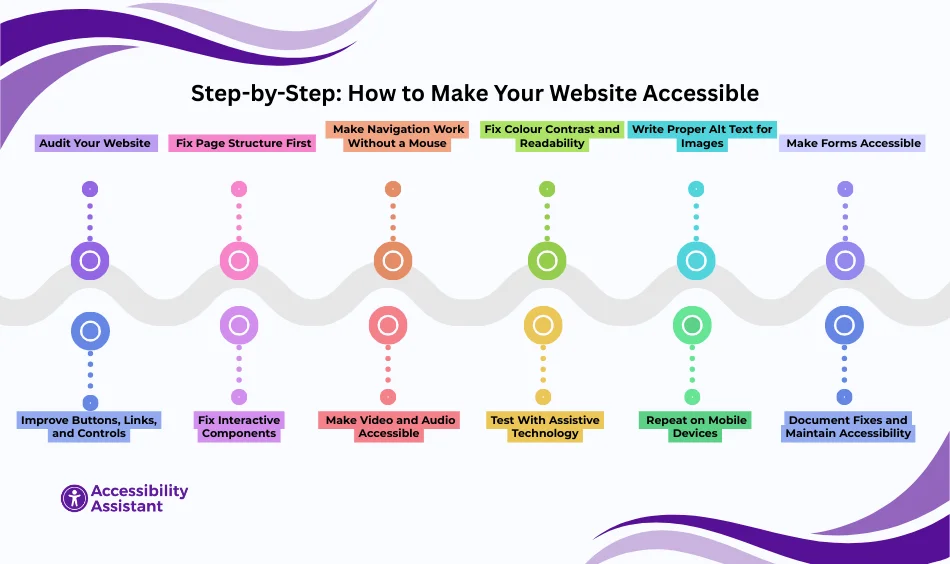
The most effective way to approach accessibility implementation is to follow a structured process.
Step 1 — Audit Your Website (Baseline Assessment)
Start by understanding where your site currently stands.
Actions:
- Run one automated accessibility scan
- Identify core templates (home, product, blog, checkout, contact)
- List issues with severity and affected pages
Automated tools help surface obvious problems, but do not catch everything. Treat this as a starting point, not a final answer.
Step 2 — Fix Page Structure First (Headings & Landmarks)
Page structure is the foundation of accessibility.
Best practices:
- Use one H1 per page
- Follow logical heading order (H2 → H3 → H4)
- Use semantic regions (header, nav, main, footer)
- Add a skip-to-content link
Clear structure helps screen readers, keyboard users, and search engines understand your content.
Step 3 — Make Navigation Work Without a Mouse
Keyboard accessibility is essential.
Fixes:
- Ensure all interactive elements are reachable with Tab
- Maintain a logical focus order
- Provide visible focus indicators
- Remove keyboard traps
- Ensure ESC closes modals and menus
A five-minute keyboard-only test often reveals critical issues immediately.
Step 4 — Fix Colour Contrast and Readability
Low contrast is the most common accessibility failure.
WCAG 2.2 requires:
- 4.5:1 contrast for normal text
- 3:1 for large text
- 3:1 for UI elements and focus indicators
Check:
- Body text
- Buttons and links
- Error messages
- Focus outlines
- Light and dark mode themes
Improving contrast is one of the fastest ways to increase accessibility.
Step 5 — Write Proper Alt Text for Images
Images must have meaningful alternatives.
Rules:
- Describe the purpose, not the appearance
- Decorative images should have empty alt text
- Avoid keyword stuffing
- Icons used as buttons must have accessible labels
Alt text improvements significantly enhance screen reader usability.
Step 6 — Make Forms Accessible
Forms are critical interaction points and frequent failure areas.
Fixes:
- Associate labels with inputs
- Provide clear instructions
- Show and announce errors
- Maintain logical focus order
- Support autocomplete where appropriate
Accessible forms improve trust, usability, and completion rates.
Step 7 — Improve Buttons, Links, and Controls
Controls must be understandable on their own.
Best practices:
- Use descriptive link text
- Avoid “click here” or vague labels
- Ensure icon-only buttons have accessible names
- Match visible text with accessible names
Screen reader users often navigate by links alone.
Step 8 — Fix Interactive Components
Modern UI elements require special attention.
Components to review:
- Dropdown menus
- Accordions
- Carousels
- Modals and pop-ups
Ensure:
- Keyboard access
- Correct focus management
- Proper announcements for state changes
- Minimal ARIA usage—semantic HTML first
Incorrect ARIA usage often creates new barriers.
Step 9 — Make Video and Audio Accessible
Media accessibility is often overlooked.
Requirements:
- Captions for videos
- Transcripts for audio content
- Keyboard-accessible media controls
Accurate captions are essential for users with hearing impairments.
Step 10 — Test With Assistive Technology
Manual testing reveals issues that tools miss.
Minimum checks:
- Screen reader navigation (NVDA or VoiceOver)
- Reading order verification
- Form submission behavior
- Dynamic content announcements
Focus on real user flows, not isolated elements.
Step 11 — Repeat on Mobile Devices
Mobile accessibility is part of WCAG 2.2.
Check:
- Touch target size
- Zoom support
- Orientation changes
- Focus visibility on mobile
Accessibility failures often appear only on small screens.
Step 12 — Document Fixes and Maintain Accessibility
Accessibility is ongoing.
Best practices:
- Add accessibility checks to QA
- Re-test after releases
- Train content and design teams
- Schedule periodic audits
Prevention is easier than repeated remediation.
Website Accessibility Checklist
Use this website accessibility checklist as a quick reference:
- Logical heading structure
- Keyboard-accessible navigation
- Visible focus indicators
- Sufficient colour contrast
- Alt text for images
- Accessible forms and errors
- Clear link and button text
- Captions for media
- Mobile accessibility checks
Accessibility Implementation Plan
A phased approach helps teams move efficiently.
Week 1 — High-impact fixes
Keyboard navigation, contrast, forms, focus
Week 2 — Content and structure
Headings, alt text, link clarity
Week 3 — Components and validation
Modals, menus, media, re-testing
Ongoing
Monitoring, training, and periodic audits
This approach makes accessibility implementation manageable and measurable.
Tools to Help You Test Accessibility
Commonly used tools include:
- Automated scanners for quick checks
- Keyboard testing for interaction validation
- Screen readers for real-world behavior
- Contrast checkers for visual testing
Automated tools find issues faster; manual testing confirms usability.
Common Accessibility Mistakes to Avoid
Even teams with good intentions often introduce accessibility issues by relying on shortcuts or outdated assumptions. Avoiding these common mistakes can prevent repeated audit failures and improve long-term accessibility outcomes.
Relying only on automated tools
Automated scanners are useful for identifying obvious issues such as missing alt text or contrast failures, but they typically detect only a portion of real accessibility barriers. Manual testing and assistive-technology checks are still essential for validating usability.
Ignoring mobile accessibility
With more users browsing on mobile devices, accessibility must extend beyond desktop experiences. WCAG 2.2 places stronger emphasis on touch target size, orientation support, and focus visibility on smaller screens. Skipping mobile testing often leaves critical gaps.
Fixing low-impact issues first
Teams sometimes spend time on cosmetic warnings while high-impact barriers, such as keyboard navigation or inaccessible forms, remain unresolved. Prioritizing issues that block user access should always come first.
Overusing ARIA attributes
ARIA can improve accessibility when used correctly, but unnecessary or incorrect ARIA usage can confuse assistive technologies. Whenever possible, semantic HTML should be used before adding ARIA roles or attributes.
Not re-testing after changes
Accessibility fixes can unintentionally introduce new issues. Every change should be validated through keyboard testing, screen reader checks, and regression testing to ensure improvements actually work as intended.
Accessibility is not a one-time fix. Continuous validation, especially after updates and releases, is essential for maintaining an accessible website over time.
Frequently Asked Questions About Making a Website Accessible
- How do I make a website accessible?
To make a website accessible, start by following WCAG guidelines. This includes using clear heading structure, ensuring keyboard navigation works across all pages, providing sufficient colour contrast, adding alt text for images, making forms accessible, and testing with screen readers. Regular audits and ongoing testing help maintain accessibility as the website evolves.
- How to make a website publicly accessible?
Making a website publicly accessible means ensuring that all users, including people with disabilities, can access and use the content without barriers. This involves removing technical restrictions, supporting assistive technologies, allowing keyboard-only navigation, enabling zoom, and ensuring content is readable and understandable across devices and browsers.
- Why is my website not accessible?
A website is often not accessible due to common issues such as low colour contrast, missing alt text, broken keyboard navigation, poorly structured headings, inaccessible forms, or interactive elements that rely only on mouse input. These issues usually arise when accessibility is not considered during design, development, or content updates.
- What makes a website not accessible for people with disabilities?
A website becomes inaccessible when users with disabilities are unable to read content, navigate pages, or complete tasks. This can be caused by unreadable text, lack of captions, missing labels, keyboard traps, unclear instructions, or dynamic content that is not announced to assistive technologies.
- Is it illegal for a website not be accessible?
In many regions, including the United States, websites are expected to be accessible under disability rights laws. While laws may not list technical requirements, accessibility complaints and legal actions often reference WCAG standards to assess compliance. Inaccessible websites can lead to legal risk, especially for public-facing businesses and organizations.
Conclusion
Learning how to make your website accessible is not about checking a box; it is about creating digital experiences that work for everyone. By following a structured process, utilizing a practical website accessibility checklist, and integrating accessibility into daily workflows, organizations can enhance usability, mitigate risk, and expand their reach to a wider audience.
Accessibility is an investment in quality, trust, and long-term digital success.