

ADA website accessibility has become a critical requirement for every business with a digital presence. Whether you run an e-commerce store, a SaaS platform, a healthcare portal, or a government site, ADA compliance affects how real users access your content and how well your website avoids legal risk.
Yet despite the rising awareness, most websites still fail basic accessibility checks. Industry research shows that more than 95% of websites contain ADA accessibility violations, and many of these issues go unnoticed until an audit exposes them.
This guide explains the most common ADA website accessibility errors, why they occur, and, most importantly, how to fix them using clear, practical steps. You’ll also see real examples, WCAG 2.2 guidance, and the latest ADA expectations to help you stay compliant.
Why ADA Website Accessibility Matters More Than Ever
The Americans with Disabilities Act (ADA) requires businesses to ensure equal access to their digital services. Under ADA Title III, websites are considered “public accommodations.” This means your site should be accessible to users with:
- Vision impairments
- Motor disabilities
- Cognitive challenges
- Hearing loss
- Neurological or learning disabilities
- Age-related limitations
Courts, legal experts, and accessibility professionals rely on WCAG (Web Content Accessibility Guidelines) as the technical benchmark for ADA compliance. Today, WCAG 2.2 is the most widely adopted standard.
When websites fail ADA accessibility:
- Users struggle to read, navigate, or interact with your content.
- Businesses risk legal complaints or lawsuits.
- Conversions, engagement, and trust suffer.
- SEO performance can decline due to poor UX signals.
Understanding the errors early helps avoid these challenges.
Why Websites Fail ADA Accessibility Requirements
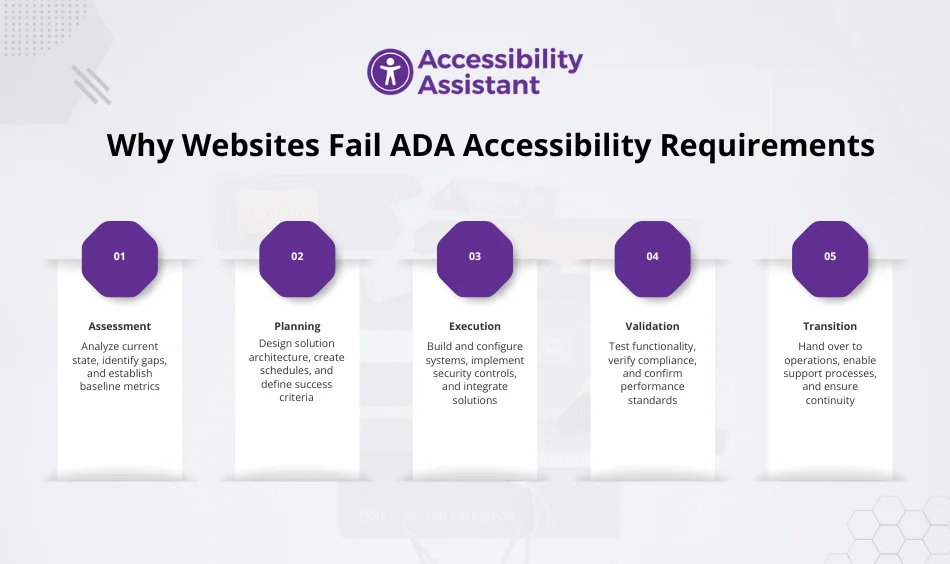
Before breaking down the specific errors, it’s important to understand why these failures happen so frequently.
1. Accessibility treated as an afterthought
Teams often build the visual design first, then think about accessibility only at the end. This leads to structural issues that are harder to fix later.
2. Rapid website updates break accessibility
Adding new banners, changing colours, updating product cards, or installing plugins can instantly create accessibility failures, even if previous audits passed.
3. Relying on non-accessible templates
Many website builders and themes “look modern” but fail screen reader tests or WCAG requirements.
4. No assistive technology testing
Screen reader testing (NVDA, VoiceOver, JAWS) is often skipped, leaving major barriers undetected.
5. Lack of accessibility skills
Not all designers, content creators, or developers know WCAG rules, ARIA usage, or semantic HTML practices.
Accessibility is a continuous process, not a one-time project.
Most Common ADA Website Accessibility Errors (And How to Fix Them)
These are the most frequent ADA website accessibility issues found in audits across industries.
1. Low Colour Contrast (Most Frequent ADA WCAG Issue)
Low contrast is the single most common ADA accessibility failure.
WCAG 2.2 requires minimum contrast ratios:
| Text / UI Type | WCAG Required Ratio |
| Normal text |
4.5:1 |
| Large text (18px+ or 14px bold) |
3:1 |
| UI components, icons, borders |
3:1 |
Why it fails
- Light grey text on white backgrounds
- Brand colour combinations with weak contrast
- Buttons with low visibility
- Poor contrast on mobile
How to fix it
- Use a colour contrast checker to test combinations.
- Adjust text, background, and button colours to meet WCAG ratios.
- Update colour tokens in your design system.
- Create accessible light/dark mode variations.
2. Missing or Incorrect Alt Text
Alt text helps users with visual impairments understand images through screen readers.
Common failures
- No alt text at all
- Vague alt text (“image,” “photo”)
- Decorative images not marked as decorative
- Keyword-stuffed descriptions
How to fix it
- Add meaningful descriptions to all non-decorative images.
- Mark decorative images with empty alt=””.
- Describe purpose, not appearance (e.g., “Submit button” vs. “blue rectangular button”).
3. Inaccessible Forms
Forms are one of the most critical ADA WCAG failure points.
Common issues
- Missing input labels
- Placeholder text used as labels
- No error messages
- Keyboard focus issues
- CAPTCHAs that block accessibility
How to fix it
- Use <label> elements linked to inputs via for attributes.
- Provide clear, visible error messages.
- Ensure keyboard users can tab through the form logically.
- Use accessible CAPTCHA alternatives (e.g., simple math questions).
4. Broken Keyboard Navigation
Users who cannot use a mouse rely entirely on keyboard navigation.
Common failures
- Buttons or menus that cannot be activated
- Focus order that jumps unpredictably
- Missing or hidden focus indicators
- Keyboard traps inside modals or carousels
How to fix it
- Test every page using only a keyboard.
- Add visible focus outlines for all interactive elements.
- Remove JavaScript barriers that trap keyboard users.
- Ensure modals and pop-ups manage focus correctly.
5. Poor Heading Structure & Reading Order
Headings provide structure for both users and screen readers.
Common failures
- Skipping heading levels (H1 → H3)
- Using headings only for styling
- Multiple H1S on one page
- Lack of logical flow
How to fix it
- Start every page with one H1.
- Follow a logical order (H2 under H1, H3 under H2).
- Do not use headings for styling; use CSS instead.
6. Video & Audio Without Captions or Transcripts
WCAG and ADA require that multimedia content have alternatives.
Common failures
- No captions on videos
- Auto-generated captions with errors
- No transcript for audio files
How to fix it
- Add accurate captions to all videos.
- Provide transcripts for audio content.
- Add audio descriptions for important visual details if needed.
7. Inaccessible Buttons, Links & Icons
Buttons and links must provide context.
Common failures
- “Click here” or “Learn more” with no meaning
- Icon-only buttons (e.g., a search icon with no label)
- Non-descriptive link URLs
How to fix it
- Use descriptive link text like “View Pricing Plans.”
- Add ARIA labels for icon-only buttons.
- Ensure links describe their destination or action.
8. Improper ARIA Usage
ARIA can empower accessibility, or break it.
Common failures
- Adding ARIA roles unnecessarily
- Using ARIA attributes instead of semantic HTML
- Mislabelled ARIA roles are causing screen reader confusion
How to fix it
- Use semantic HTML first (buttons, links, lists, headings).
- Apply ARIA roles only when needed.
- Test ARIA behaviour with screen readers.
9. Interactive Components That Are Not Accessible
Examples:
- Carousels
- Dropdowns
- Accordion menus
- Pop-ups
- Mega menus
These often fail ADA WCAG rules.
How to fix it
- Ensure components work with keyboard navigation.
- Add roles and ARIA attributes appropriately.
- Manage focus when elements appear or disappear.
10. Inaccessible PDFs and Downloadable Documents
Government, healthcare, and education sites often fail here.
Common failures
- PDFs with no headings
- Scanned images without text versions
- Missing alt text inside documents
How to fix it
- Use accessible PDF templates.
- Add document tags, headings, and alt text.
- Provide an HTML version whenever possible.
If you want a complete understanding of ADA requirements before reviewing specific errors, you can also read our detailed guide on Americans with Disabilities Act compliance. It explains who the ADA applies to, how WCAG connects to the law, and what businesses must follow to stay compliant.
ADA-Compliant Website Examples (What Good Compliance Looks Like)
Users often want to see real ADA-compliant website examples. These examples show patterns you can follow:
Example 1 — A Government Website
- Clear structure and headings
- Strong colour contrast
- Accessible forms
Example 2 — A Large E-commerce Store
- Keyboard-accessible filters
- Alt text for product images
- Accessible checkout flow
Example 3 — University or Education Portal
- Captions for video content
- Accessible course materials
- Proper document structure
Example 4 — SaaS Platforms
- Screen reader-friendly dashboards
- Clear focus outlines
- Keyboard-accessible components
How to Fix the Most Common ADA WCAG Errors
Here’s a user-friendly list of how to fix issues found in ADA website accessibility audits:
Fix Colour Contrast
- Adjust colours to meet WCAG 2.2
- Update CSS or design tokens
Fix Alt Text
- Add descriptive text
- Remove decorative images from the reading order
Fix Forms
- Add explicit labels
- Improve error messaging
Fix Navigation
- Add logical focus order
- Improve keyboard behaviour
Fix Media
- Add captions & transcripts
Fix Structure
- Rebuild headings properly
- Use semantic HTML
Following these fixes solves the majority of ADA website accessibility problems.
Tools to Test ADA Website Accessibility
Here are the tools used by accessibility teams:
- Accessibility Assistant
- WAVE WebAIM
- Axe DevTools
- Google Lighthouse
- Accessibility Insights
- Stark (for Figma/Sketch)
Use multiple tools for the best coverage.
How to Maintain Long-Term ADA Website Compliance
ADA compliance is ongoing. Here’s how to keep it stable:
- Use accessibility checklists
- Create accessible design systems
- Train teams on WCAG
- Test major updates before going live
- Run a weekly or monthly audit
- Implement continuous monitoring with AI tools
Long-term compliance reduces legal risk and improves UX.
FAQs About The ADA Website Accessibility Errors
Q1: What is an ADA website accessibility error?
An ADA website accessibility error is any issue that blocks or limits access for users with disabilities. This includes problems with colour contrast, missing alt text, keyboard traps, unreadable forms, and videos without captions. These errors make the website non-compliant with ADA standards and WCAG 2.2 rules.
Q2: How do I check if my website meets ADA accessibility standards?
You can check ADA accessibility by running automated scans, reviewing WCAG 2.2 rules, testing with a keyboard, checking headings, and using a screen reader. A full review should include manual testing and assistive-technology checks. Tools like Accessibility Assistant, Axe DevTools, and WAVE help identify common issues.
Q3: What are the most common ADA issues found during website audits?
The most common ADA issues include low colour contrast, missing labels, incorrect alt text, poor heading structure, inaccessible forms, keyboard navigation problems, unclear link text, and videos without captions. These issues appear across most industries and affect both desktop and mobile users.
Q4: How do I fix ADA accessibility issues on my website?
Start by correcting colour contrast, adding accurate alt text, repairing forms, improving keyboard access, updating headings, and adding captions or transcripts. After making changes, repeat the audit to confirm that all issues have been resolved based on WCAG 2.2 rules.
Q5: Do ADA website accessibility requirements apply to small businesses?
Yes. ADA Title III applies to most businesses that provide public services online, including small and medium-sized companies. Courts consider websites “public accommodations,” which means they must be accessible to users with disabilities. Even small sites can face complaints if barriers are present.
Conclusion
ADA website accessibility is essential for users, SEO, conversions, and compliance. Most accessibility errors happen because websites change quickly, accessibility is overlooked, and audits are not done regularly.
By understanding common errors and fixing them using structured, WCAG-aligned steps, you can make your website more compliant, more usable, and more inclusive for everyone.
With the right tools, continuous monitoring, and smart development practices, any website can achieve strong ADA accessibility and stay compliant for the long term.